
 Forum
ForumEdit at your desk
Open shared folders in Finder or File Explorer. Use your usual editor, then let Files sync the changes.
Keep the desktop app running. Wait for sync to finish before picking up the latest version elsewhere.

The drawing on your desk. The photos from site. The handover your teammate needs next.
Keep them in shared folders, ready to open in Finder, File Explorer, your phone or the web.
5 GB included free. No connected device needed.
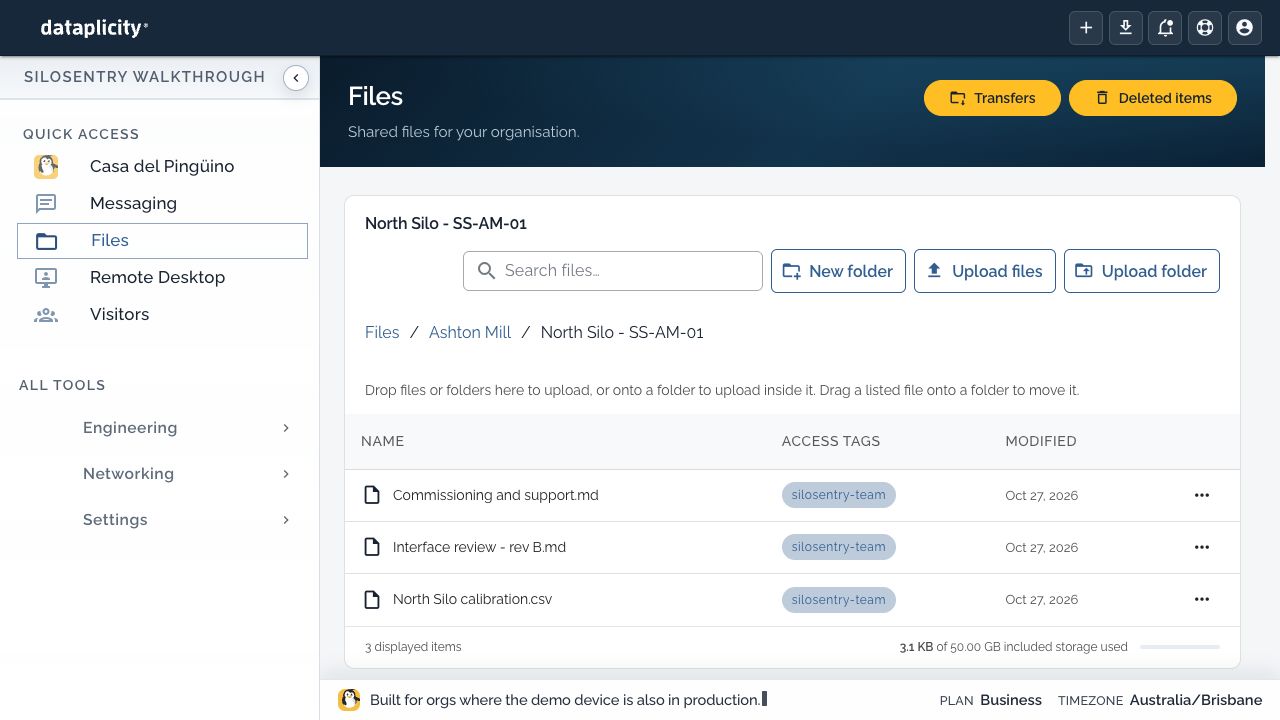
Open shared folders in Finder or File Explorer. Use your usual editor, then let Files sync the changes.
Keep the desktop app running. Wait for sync to finish before picking up the latest version elsewhere.
Browse, preview, upload and download in the iOS and Android apps. Use the web when you’re on another computer.
Download desktop files before going offline. Online-only files need a connection; mobile downloads and exports are copies you manage yourself.
Share folders with your team using access tags and organisation permissions. Your connected computers follow the same account permissions as the web.
Browse, upload and download on site.
Work with files and share folders with your team.
Review an earlier version, recover a deleted folder or untangle two edits. Files keeps the recovery options close to the work.
Shared Files storage per organisation. The allowance belongs to the team, rather than each person or Linux device. Check usage and limits in Files.
Compare plans and allowancesDesktop: macOS 14 or later on Apple silicon · Windows x64 / ARM64
Also available in a current browser and the Dataplicity iOS and Android apps.
Bring Files alongside Chat, planning boards and Remote Desktop in your team’s workspace.
Start with your workspaceThe desktop app connects your team’s computers to shared folders. It does not automatically synchronise an IoT device’s filesystem or attach documents to devices, incidents, conversations or boards.